PATHCRAFT / HOW IT WORKS
PathCraft, in practice.
A real project, from its first question to its exported PDF. Actual screens, cards, and menus from PathCraft.
01
Asking your first question
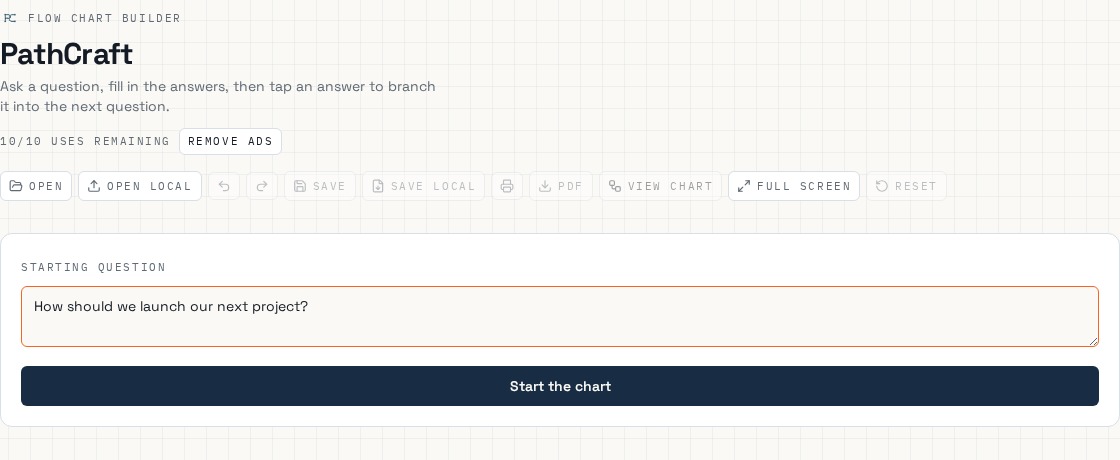
Type your starting question into the box and choose Start the chart.
02
Answering the question
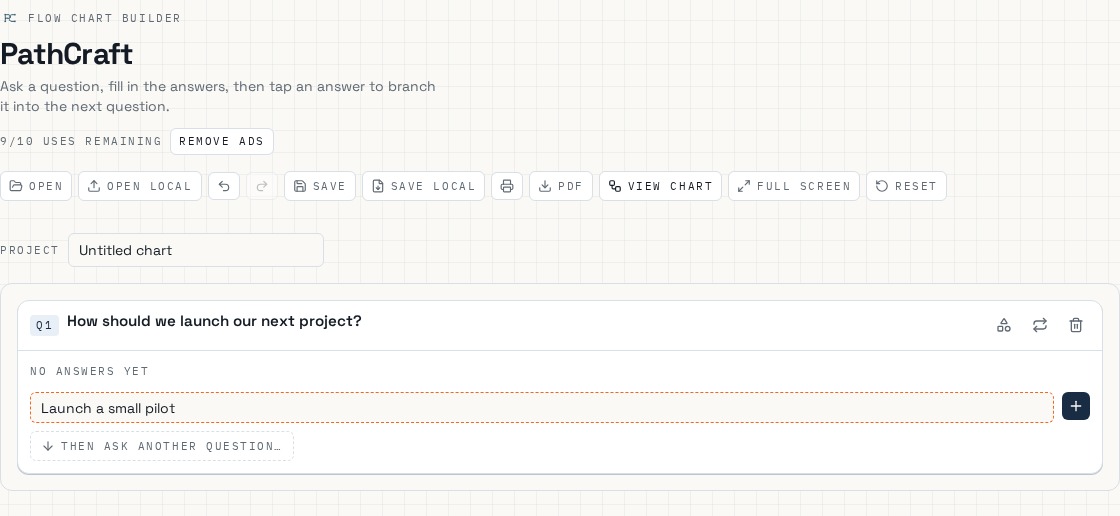
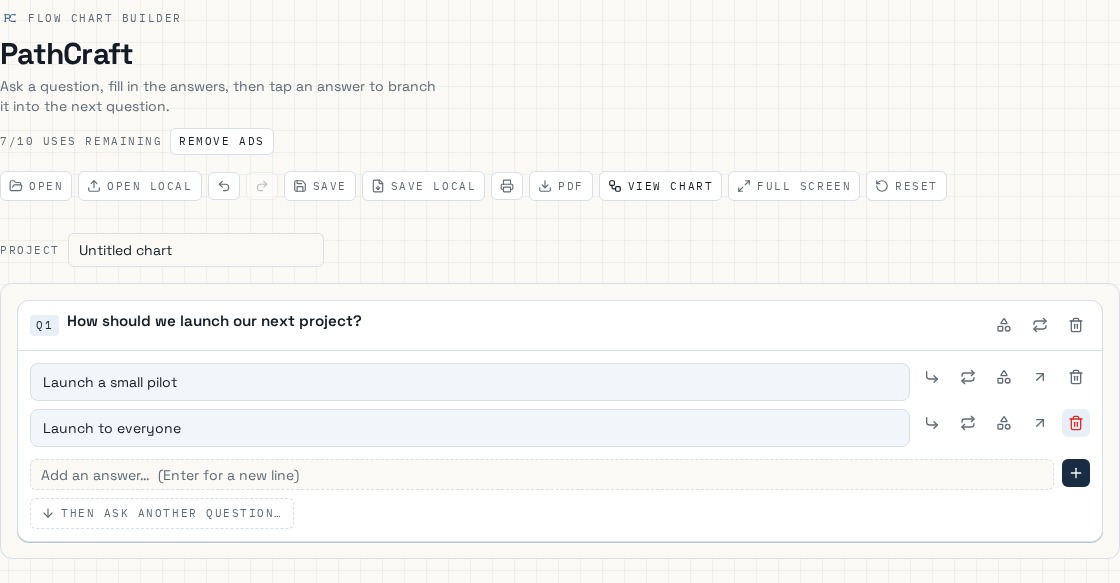
Your question appears as Q1. Press the + button to open the “Add an answer…” field, type your answer and add it. Repeat for each answer.
03
Your chart
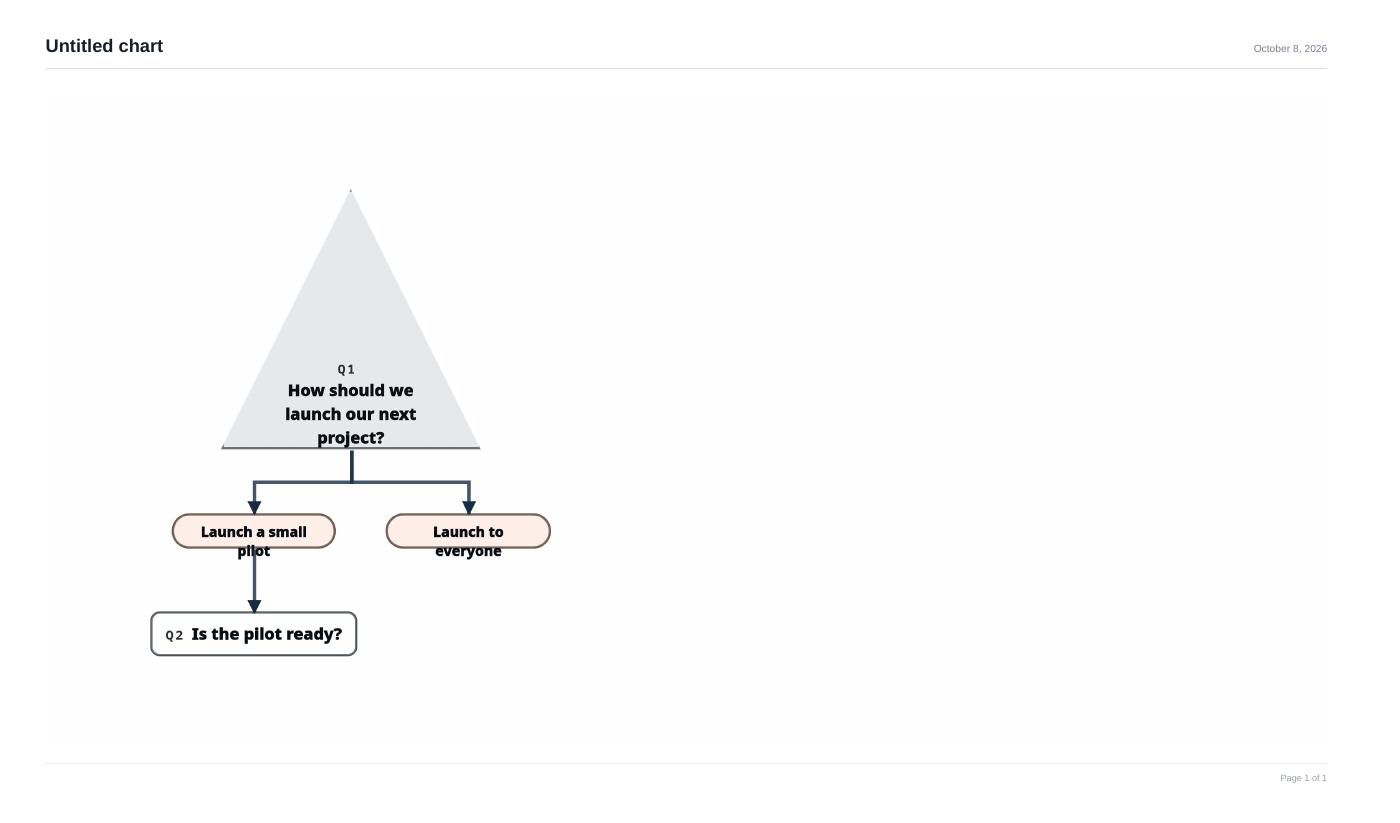
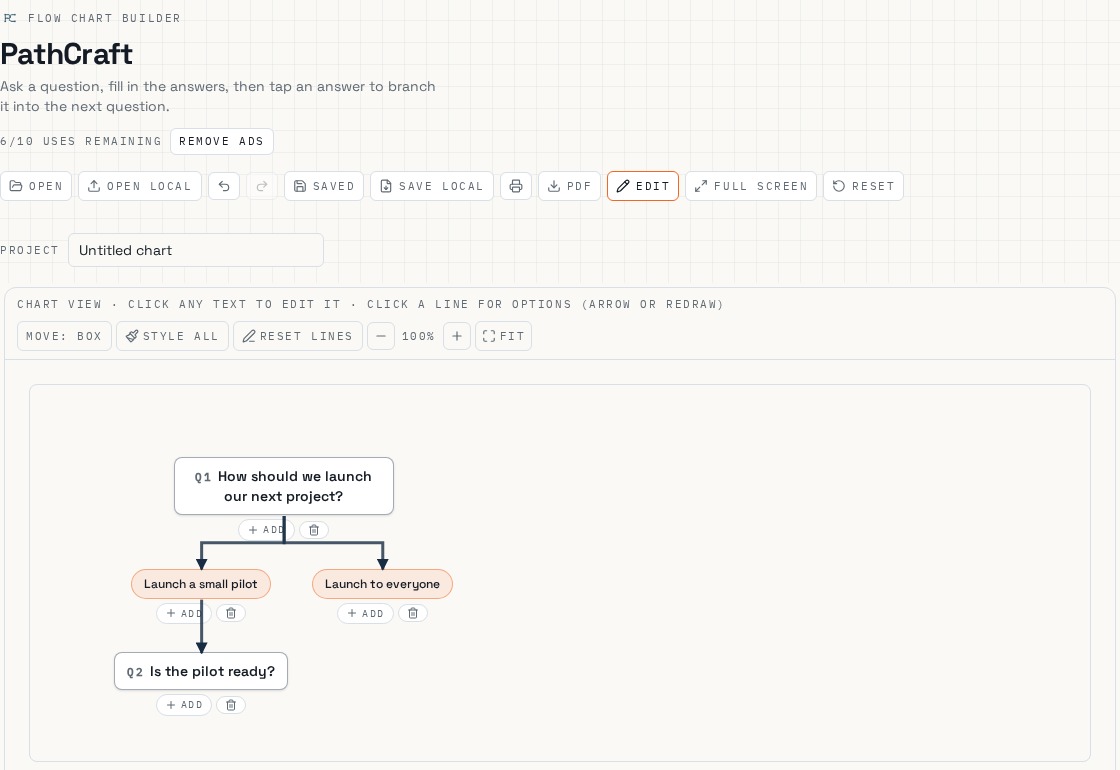
Choose View Chart and your questions and answers are drawn as a connected flowchart.
04
Open, Open Local, Save, Save Local
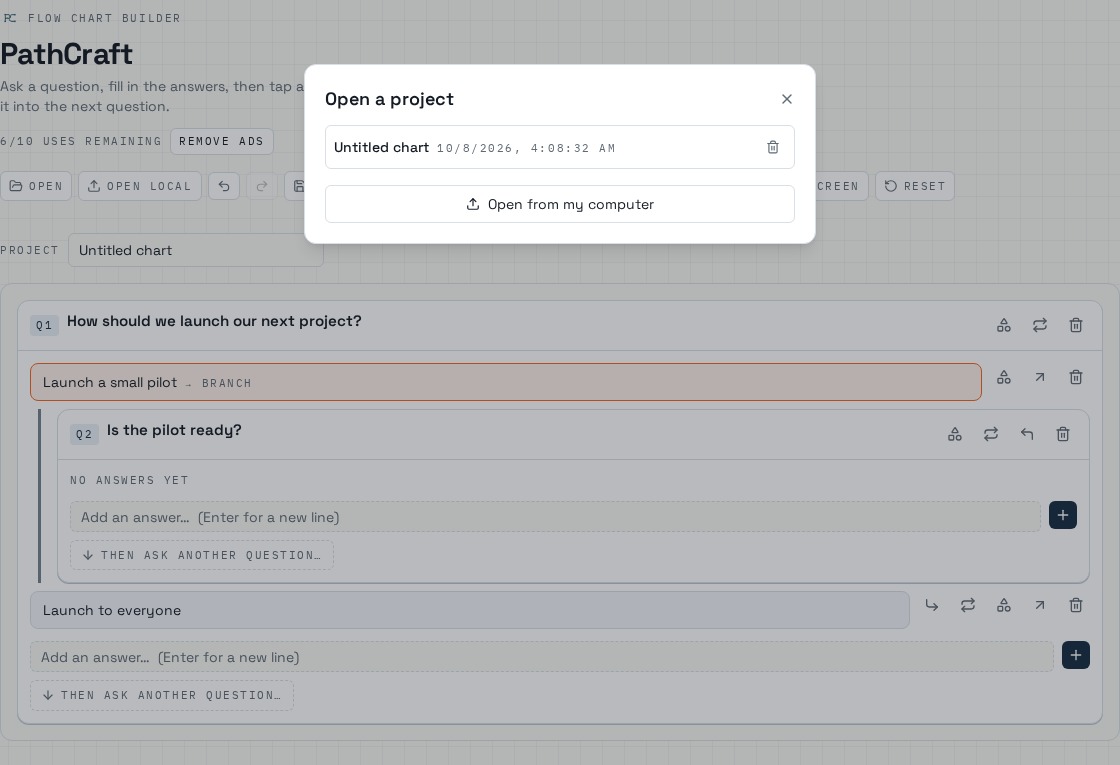
Save keeps the chart inside the app and Open lists your saved charts. Save Local downloads a chart file to your device and Open Local loads one back in.

05
View Chart button
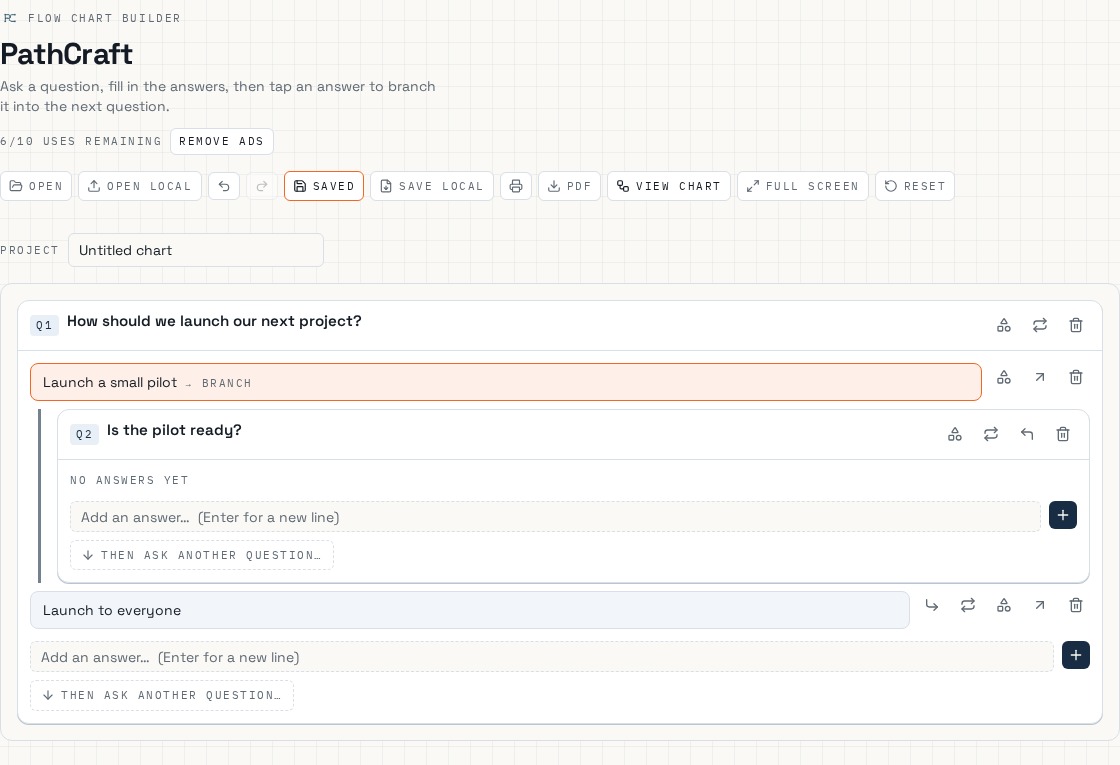
Switches from the edit page to the chart. In chart view the same button becomes Edit to come back.
06
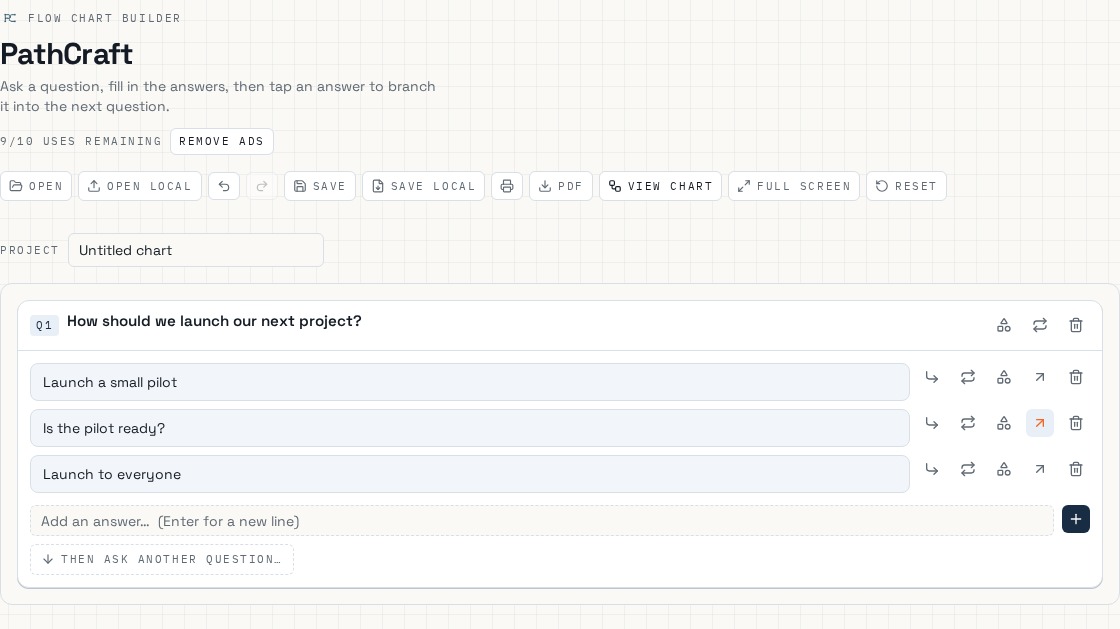
Answer icons in edit mode
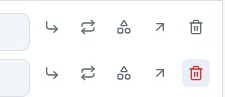
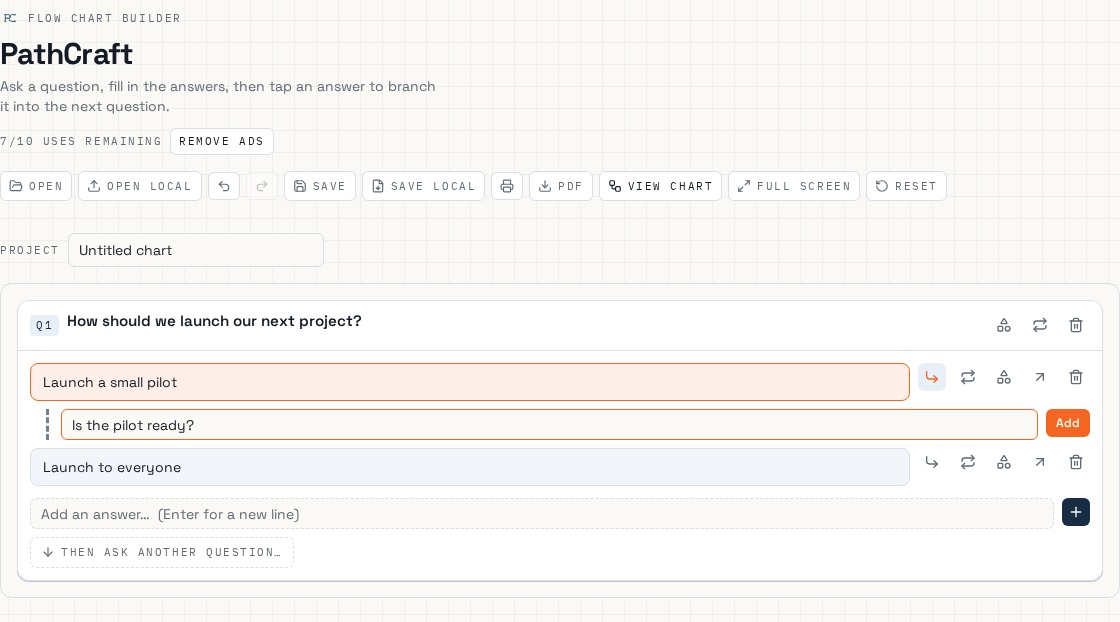
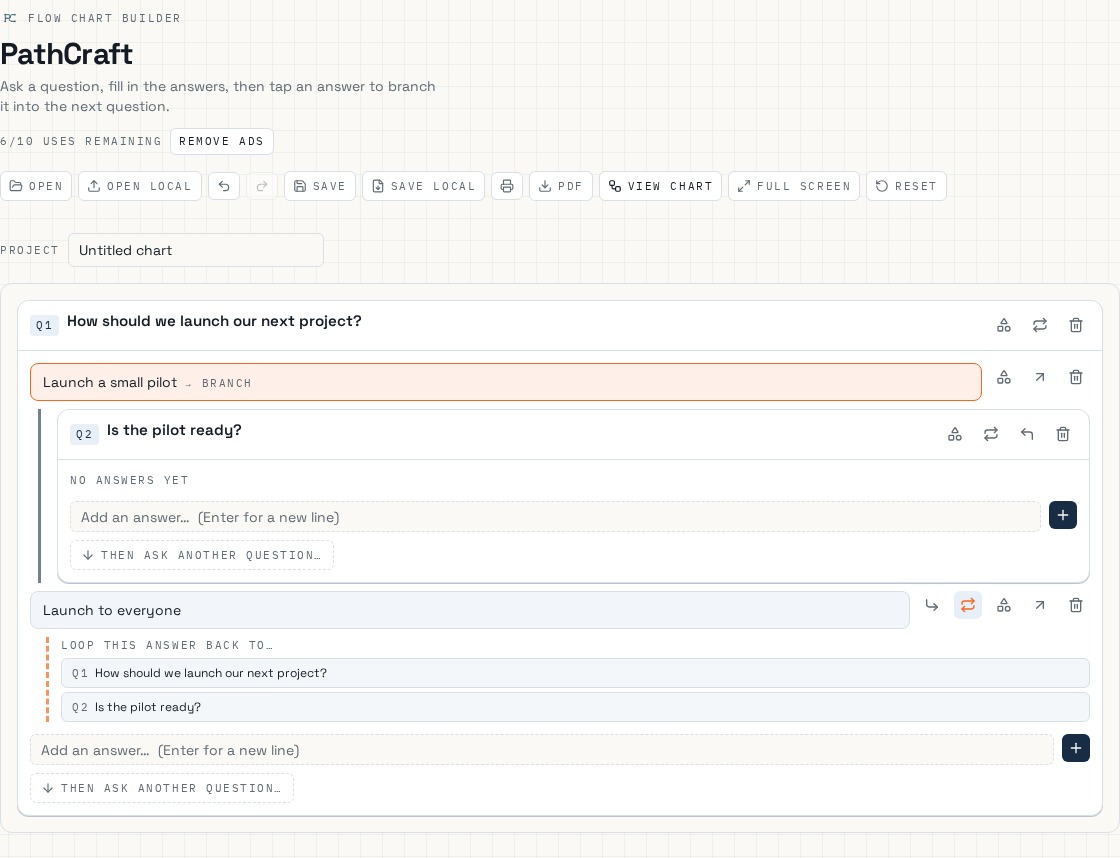
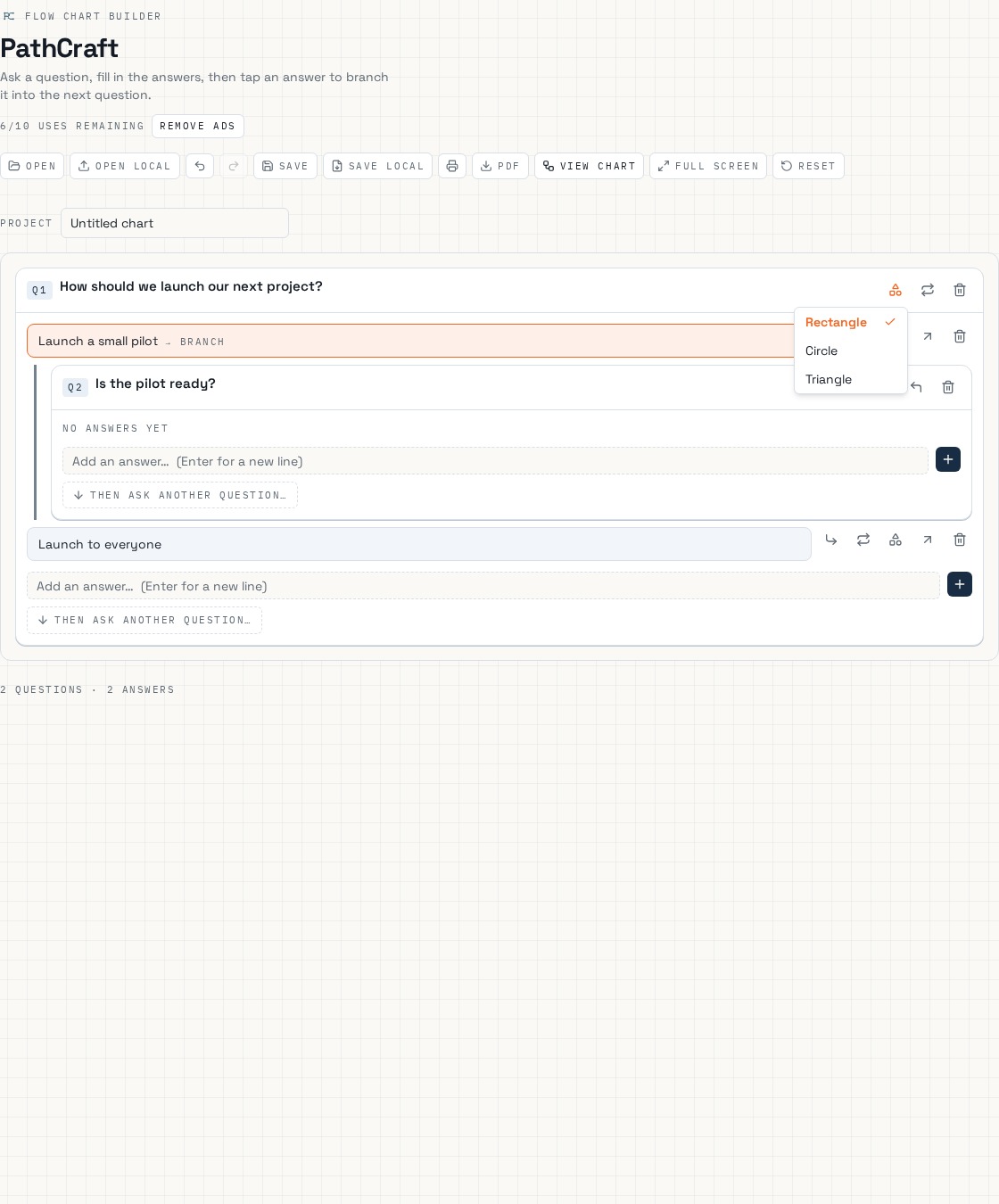
Each answer has, from left to right: branch into a new question, loop back to an existing question, change shape, turn it into a question, and delete.
07
The Add button
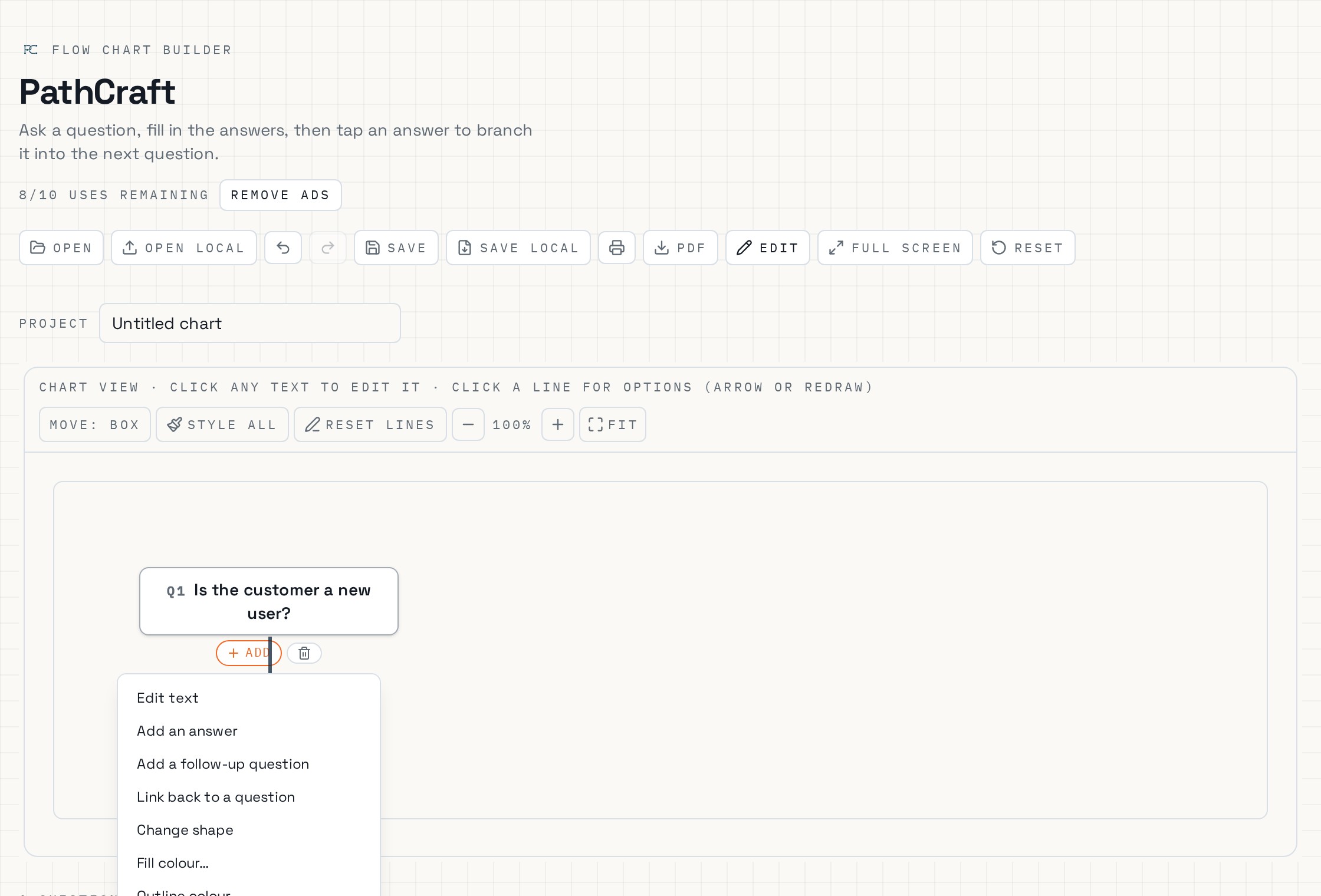
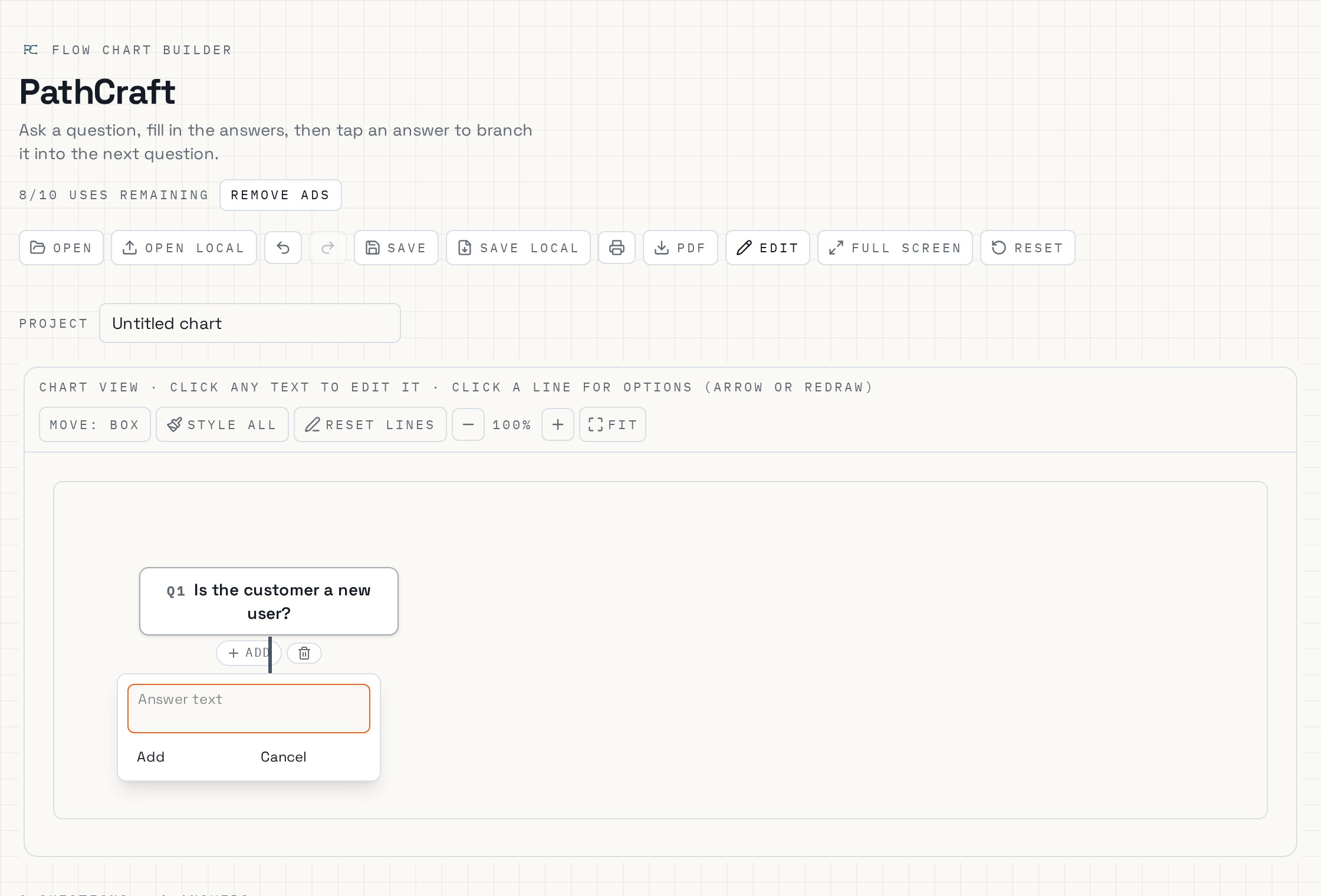
On the chart, the + button under a box opens its options. Choose Add an answer, type the answer text and press Add — the new answer joins the chart.
08
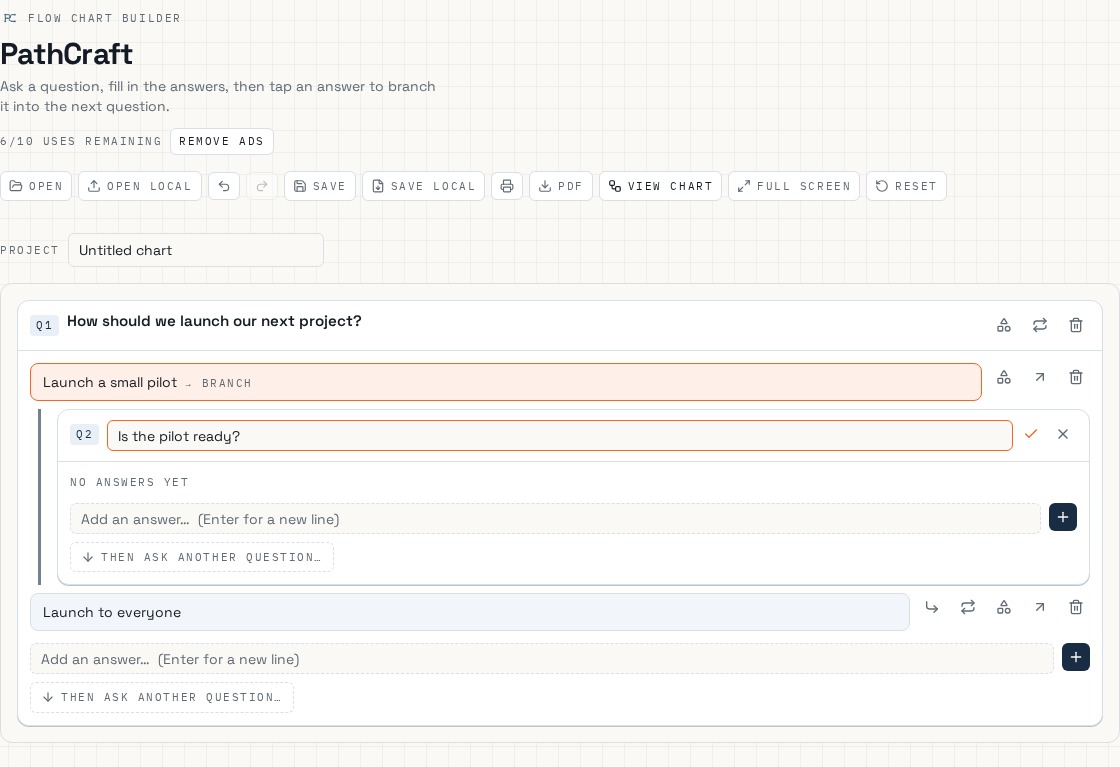
Clicking on a question
Click a question’s text to edit it, then tick to save or cross to cancel.
09
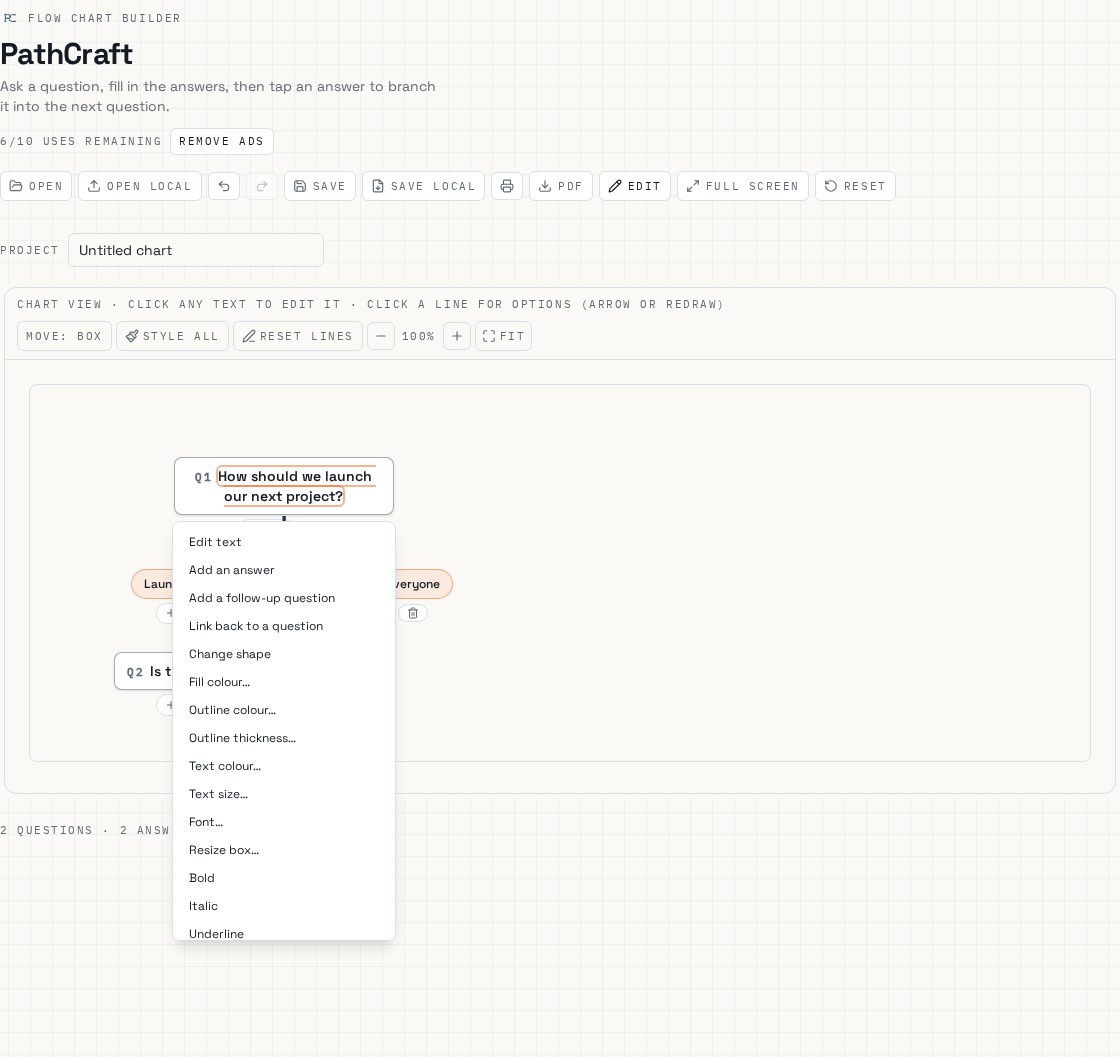
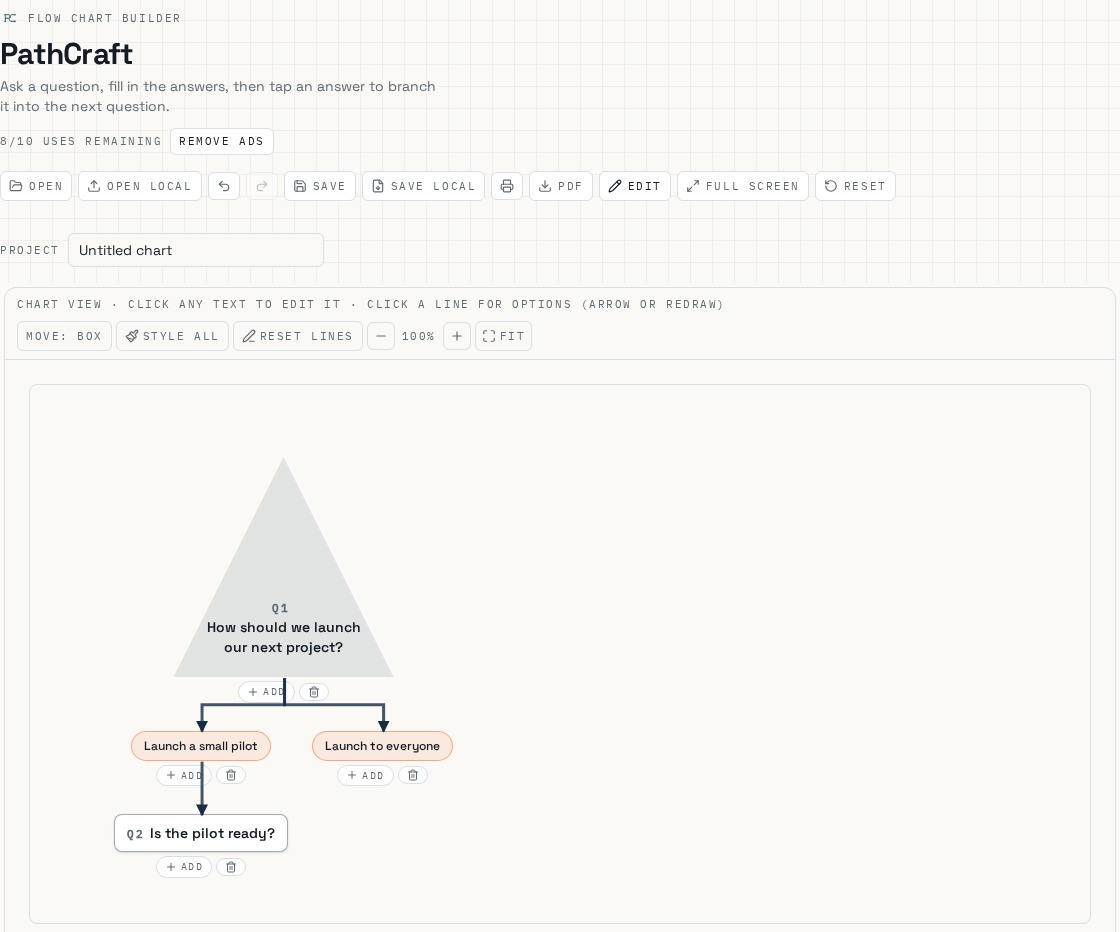
Chart view · click any text to edit it
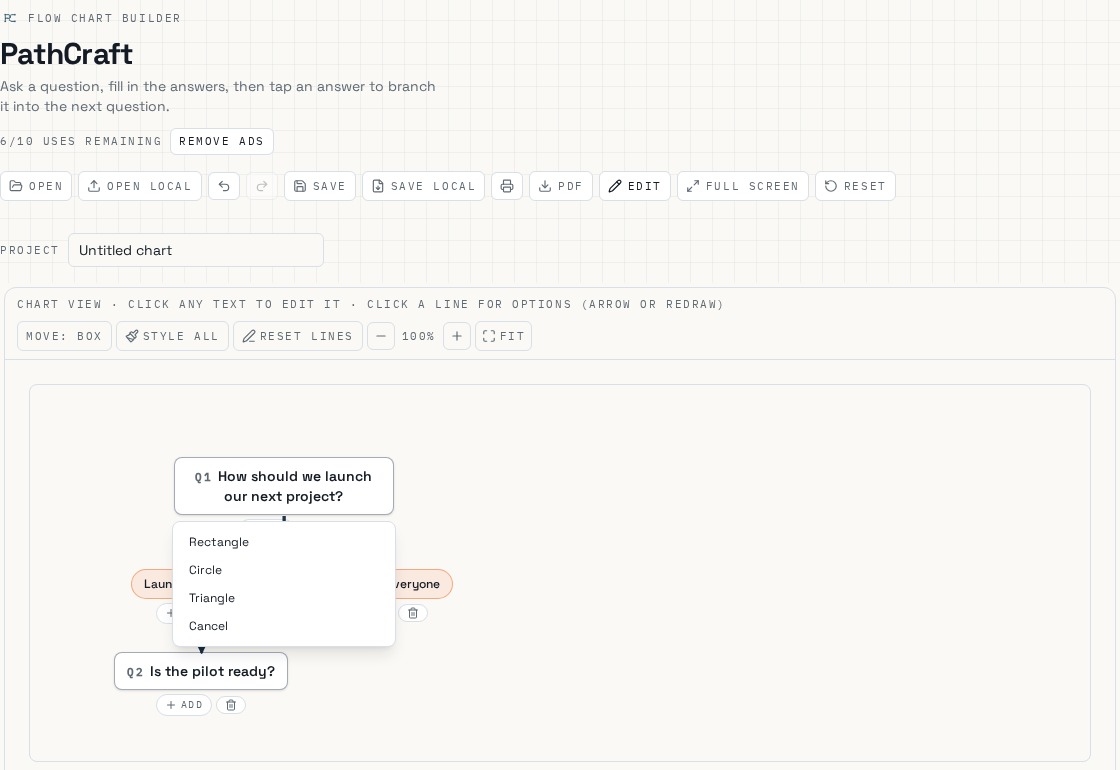
Click a box on the chart to edit its text, add answers or follow-ups, change its shape, colours, font or size.
10
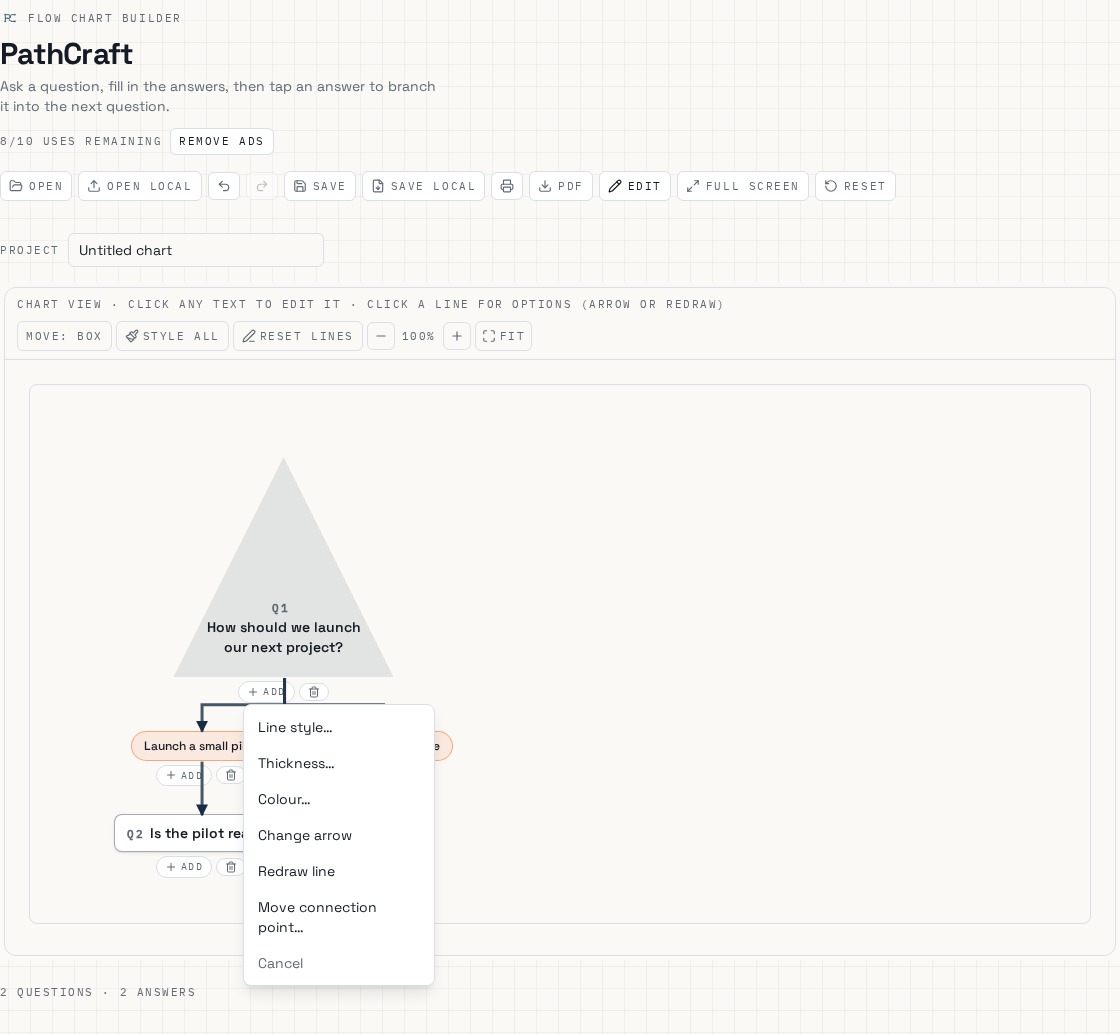
Chart view · click a line for options
Click any connecting line to change its style, thickness, colour, arrow, or redraw it.
11
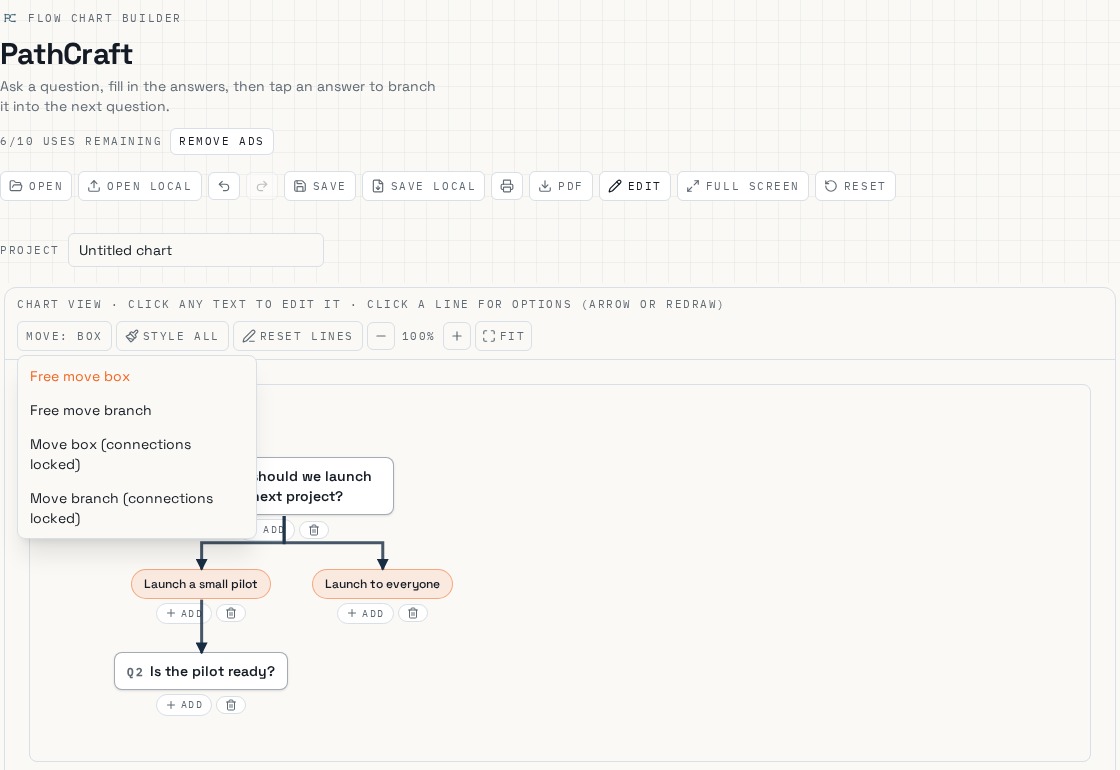
Move: Box
Choose what dragging moves — one box or a whole branch — and whether lines stay locked to their edges.
12
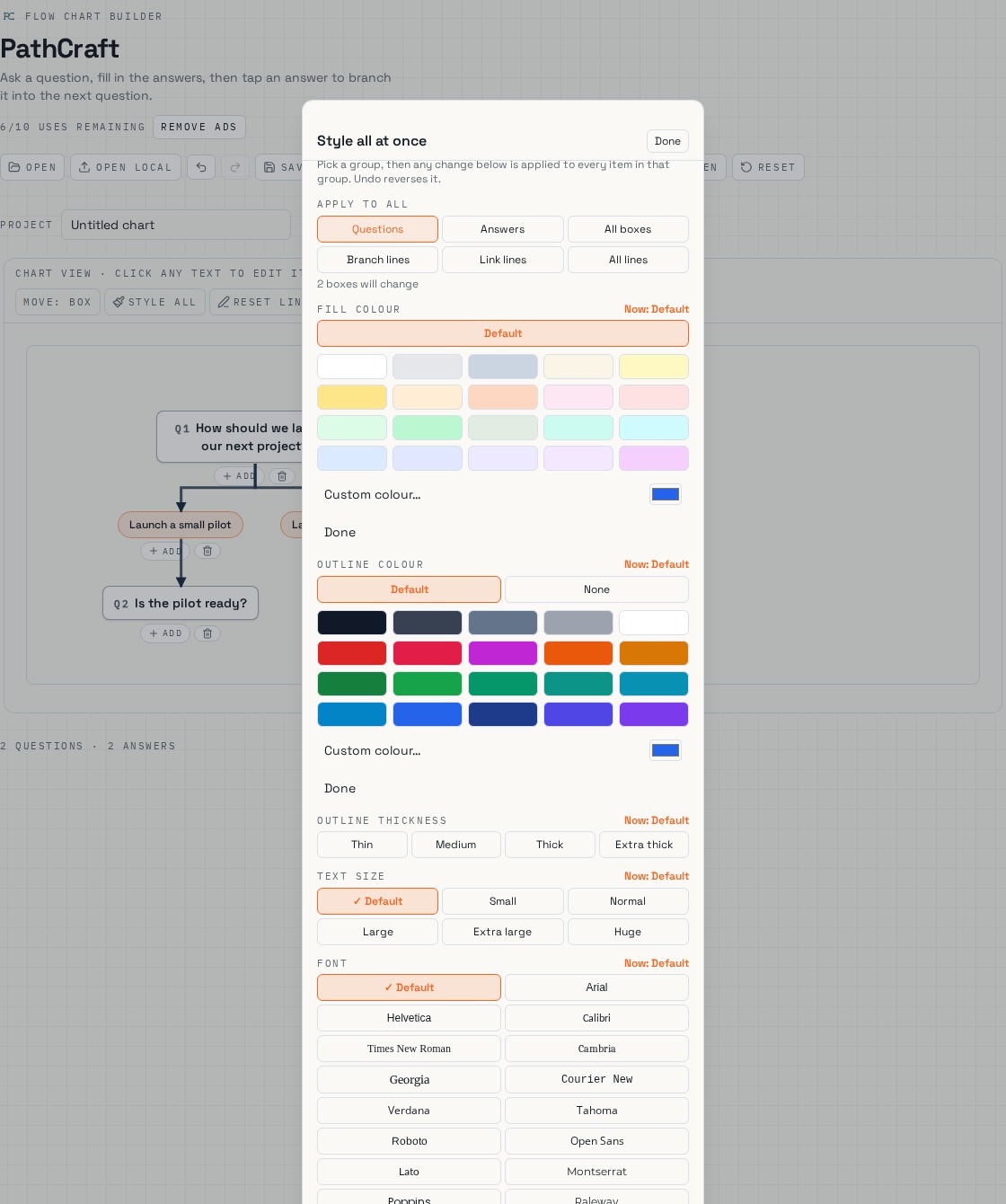
Style All, Reset Lines, Zoom and Fit
Style All changes the look of every question, answer or line at once. Reset Lines puts every line back on its automatic route. − and + zoom, and Fit shows the whole chart.

13
PDF and Print
PDF exports a clean document of your chart; Print opens your device’s print options.